How to Merge Multiple Images into One PDF
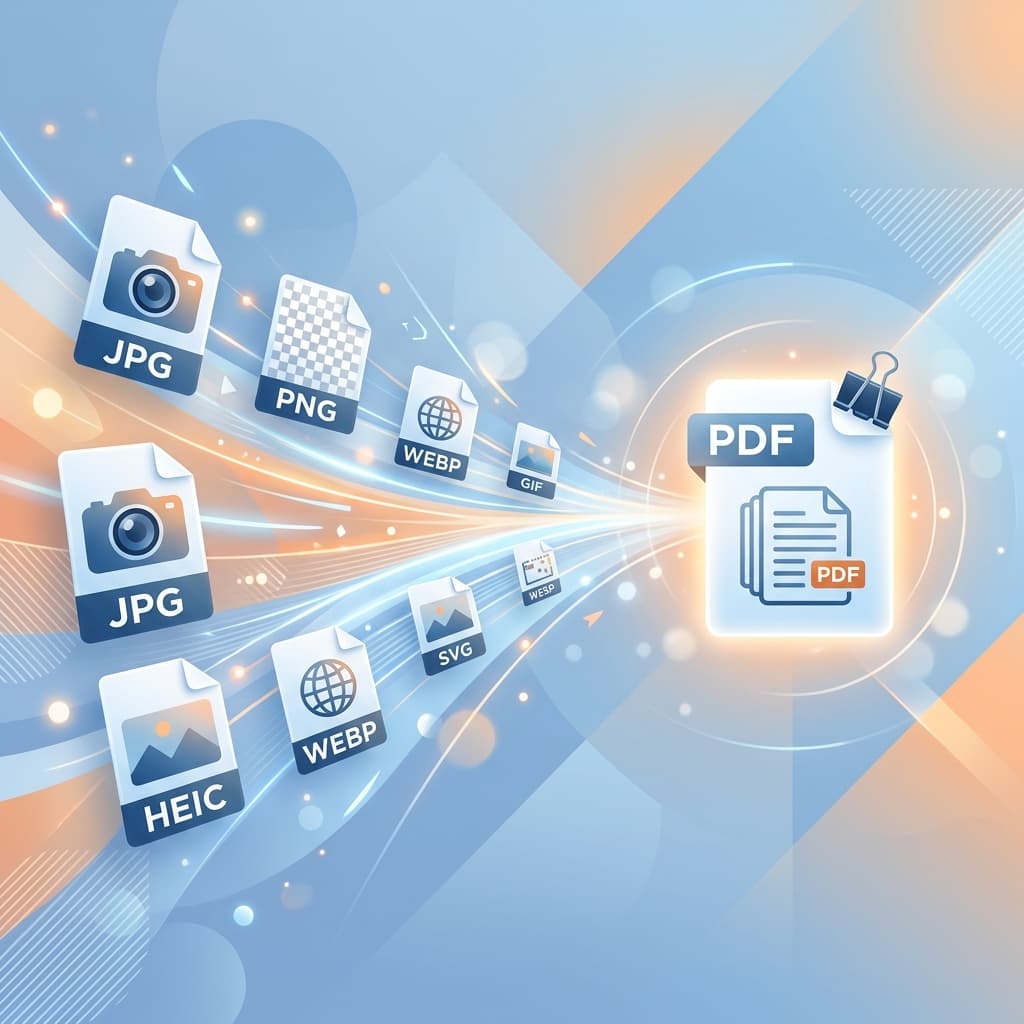
Merging multiple images into a single PDF document is essential for creating photo albums, presentations, reports, and portfolios. This comprehensive guide shows you the easiest ways to combine your images into one organized PDF file.
Why Merge Images into PDF?
- Organization: Keep related images together in one file
- Easy Sharing: Send one PDF instead of multiple image files
- Professional Presentation: Create polished documents and portfolios
- Reduced Email Attachments: One file is easier to email than dozens of images
- Print-Ready: Perfect for creating photo books or documents for printing
- Universal Compatibility: PDFs open on any device
Step-by-Step: Merge Images to PDF Online
Step 1: Collect and Organize Your Images
Before merging, prepare your images:
- Gather all images you want to include
- Rename files with numbers (001, 002, 003) for easy ordering
- Ensure images are in supported formats (JPG, PNG, WEBP, GIF)
- Check that images are properly oriented
Pro Tip: Use consistent naming like "Project_001.jpg", "Project_002.jpg" to maintain order when uploading.
Step 2: Upload Images to Converter
Visit a reliable image to PDF converter like our free tool:
- Click the upload area or drag and drop all images at once
- Most converters support batch uploads of 10-100+ images
- Wait for all images to load (usually instant)
- Preview thumbnails to ensure all images uploaded correctly
Step 3: Arrange Images in Desired Order
Organize your images before merging:
- Drag and drop thumbnails to reorder
- Place images in chronological or logical sequence
- Group related images together
- Remove any unwanted images
This step is crucial—the PDF will contain images in the exact order you arrange them.
Step 4: Merge and Download PDF
Complete the merge:
- Click "Convert to PDF" or "Download PDF"
- Wait for processing (usually instant for client-side tools)
- Download your merged PDF file
- Open and verify all images are included in correct order
Best Practices for Merging Images
1. Consistent Image Sizing
For the most professional-looking PDF, use images with similar dimensions. If images vary greatly in size, consider:
- Resizing images to a standard width or height before merging
- Cropping images to the same aspect ratio
- Using landscape orientation for all, or portrait for all
2. Optimize File Sizes
Large images create large PDFs. To keep file size manageable:
- Resize high-resolution images if they'll only be viewed on screen
- Use JPG for photographs (smaller file size)
- Use PNG for graphics and screenshots
- Compress images before merging if file size is a concern
3. Logical Organization
Organize images in a way that makes sense:
- Chronological: For events, trips, or time-based content
- Thematic: Group by topic or category
- Sequential: For step-by-step guides or instructions
- Priority: Most important images first
4. Quality Control
Before finalizing your PDF:
- Check for duplicate images
- Verify all images are right-side up
- Ensure no blurry or low-quality images
- Confirm proper color and brightness
Common Use Cases
📸 Photo Albums
Create digital photo albums from vacation, wedding, or family photos. Merge hundreds of images into a single, shareable PDF.
📊 Business Reports
Combine charts, graphs, and screenshots into comprehensive business reports and presentations.
🎨 Design Portfolios
Showcase your work by merging design mockups, illustrations, and project photos into a professional portfolio.
📚 Study Materials
Merge scanned notes, diagrams, and textbook pages into organized study guides.
🏠 Real Estate Listings
Create property brochures by combining interior and exterior photos into a single PDF.
Alternative Methods
Using Adobe Acrobat
For users with Adobe Acrobat Pro:
- Open Acrobat Pro
- Go to Tools → Combine Files
- Add your image files
- Arrange in desired order
- Click "Combine" to create PDF
Cost: $19.99/month subscription required
Using Microsoft Word
A free method if you have Microsoft Office:
- Create a new Word document
- Insert all images (Insert → Pictures)
- Arrange and resize as needed
- Save as PDF (File → Save As → PDF)
Limitation: Requires manual layout work
Using Preview on Mac
Mac users can use the built-in Preview app:
- Select all images in Finder
- Right-click → Open With → Preview
- In Preview, select all thumbnails in sidebar
- File → Print → PDF → Save as PDF
Troubleshooting Common Issues
Images in Wrong Order
Solution: Rename files with sequential numbers before uploading, or use a converter with drag-and-drop reordering.
PDF File Too Large
Solution: Resize images before merging, use JPG instead of PNG for photos, or use a converter with compression options.
Images Appear Blurry
Solution: Use higher resolution source images and avoid converters that apply aggressive compression.
Different Page Sizes in PDF
Solution: Resize all images to the same dimensions before merging, or use a converter that automatically standardizes page sizes.
Conclusion
Merging multiple images into one PDF is simple with the right tools. For the easiest experience, use a free online converter like our tool that offers drag-and-drop reordering, unlimited file support, and instant processing—all without uploading your files to a server.
Whether you're creating photo albums, business reports, or design portfolios, combining images into PDF format provides a professional, organized, and universally compatible solution.
Ready to Merge Your Images?
Combine unlimited images into one PDF—free, fast, and private!
Merge Images to PDF Free