WEBP to PDF: Everything You Need to Know
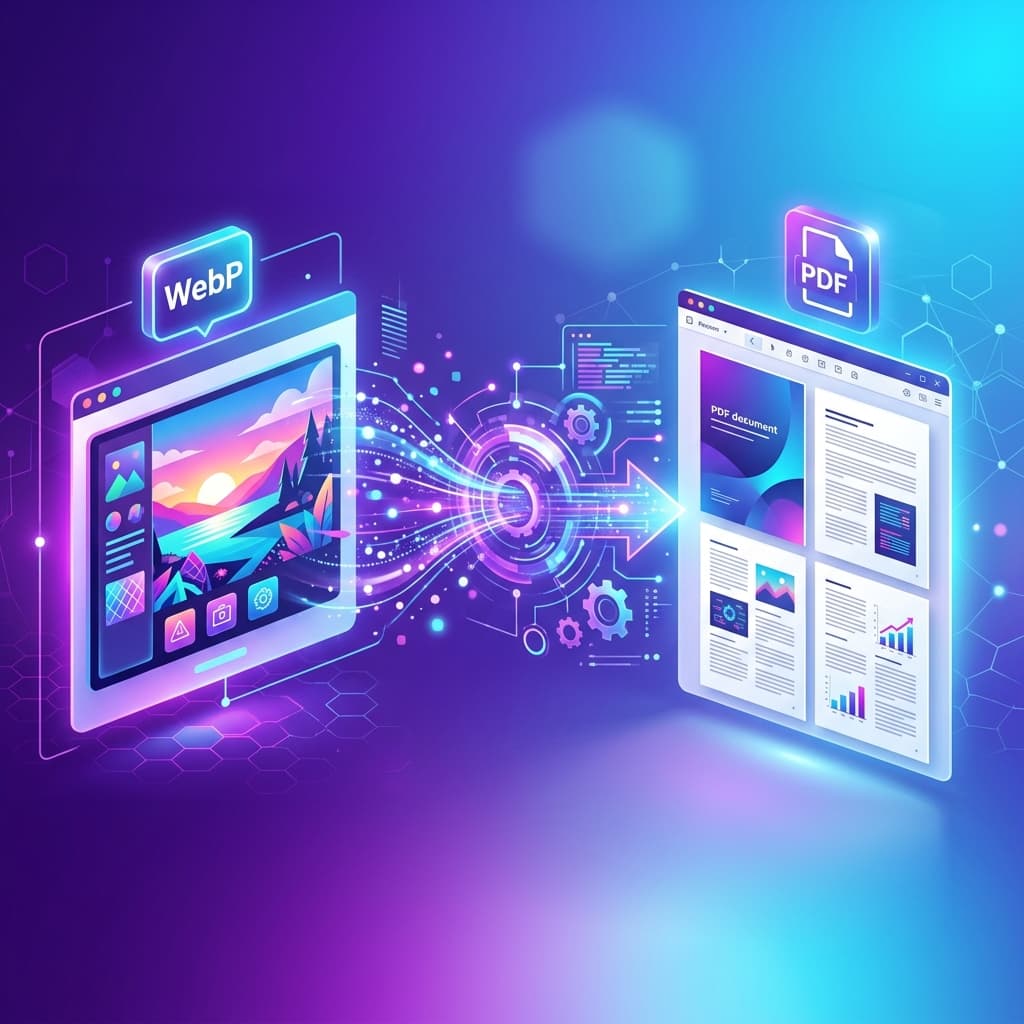
WEBP is Google's modern image format that's becoming increasingly common on the web. If you've downloaded images and found them in WEBP format, you might need to convert them to PDF for sharing, printing, or archiving. This complete guide covers everything about WEBP and how to convert it to PDF.
What is WEBP Format?
WEBP is a modern image format developed by Google in 2010. It provides superior compression for images on the web, offering both lossy and lossless compression options. WEBP files are typically 25-35% smaller than equivalent JPG or PNG files while maintaining similar quality.
Key Features of WEBP:
- Superior Compression: Smaller file sizes than JPG and PNG
- Lossy & Lossless: Supports both compression types
- Transparency Support: Like PNG, WEBP supports alpha channel
- Animation Support: Can replace animated GIFs
- Web Optimized: Designed specifically for faster web loading
Why Convert WEBP to PDF?
While WEBP is excellent for web use, there are several reasons to convert to PDF:
📱 Compatibility Issues
Not all devices and applications support WEBP. Older software, some mobile apps, and certain operating systems may not display WEBP images correctly.
📄 Document Creation
When creating professional documents, reports, or presentations, PDF is the universal standard that ensures consistent display across all platforms.
🖨️ Printing Requirements
Many printing services and professional printers prefer or require PDF format for optimal results.
📧 Easy Sharing
PDF files are universally recognized and can be opened on any device without compatibility concerns.
🗄️ Archiving
PDF is a stable, long-term archival format that will remain accessible for years to come.
How to Convert WEBP to PDF
Method 1: Online WEBP to PDF Converter (Recommended)
Fastest & Easiest Method
Using a free online converter like our WEBP to PDF tool is the most convenient option:
Steps:
- Visit the online WEBP to PDF converter
- Upload your WEBP files (drag & drop or click to browse)
- Arrange images in desired order if converting multiple files
- Click "Convert to PDF" and download your file
Advantages:
- ✅ No software installation required
- ✅ Works on any device (Windows, Mac, Linux, mobile)
- ✅ Batch conversion supported
- ✅ Client-side processing for privacy
- ✅ Completely free with no limitations
Method 2: Using Image Editing Software
Professional image editors can convert WEBP to PDF:
Adobe Photoshop:
- Open WEBP file in Photoshop
- Go to File → Save As
- Choose "Photoshop PDF" as format
- Configure PDF settings and save
GIMP (Free Alternative):
- Open WEBP file in GIMP
- File → Export As
- Change extension to .pdf
- Click Export and configure PDF options
Method 3: Command Line (For Tech Users)
Using ImageMagick on Linux/Mac:
convert input.webp output.pdfFor batch conversion:
convert *.webp output.pdfWEBP vs Other Image Formats
| Feature | WEBP | JPG | PNG |
|---|---|---|---|
| File Size | ✅ Smallest | Medium | Largest |
| Transparency | ✅ Yes | ❌ No | ✅ Yes |
| Lossy Compression | ✅ Yes | ✅ Yes | ❌ No |
| Lossless Compression | ✅ Yes | ❌ No | ✅ Yes |
| Browser Support | Modern browsers | ✅ Universal | ✅ Universal |
| Best For | Web images | Photos | Graphics/logos |
Quality Considerations
When converting WEBP to PDF, keep these quality factors in mind:
1. Resolution
WEBP files are often optimized for web display (72-96 DPI). For printing, you may want higher resolution:
- Screen viewing: 72-96 DPI is sufficient
- Professional printing: 300 DPI recommended
- Large format printing: 150-200 DPI minimum
2. Compression Settings
Choose appropriate compression based on your needs:
- Maximum quality: Use lossless or minimal compression
- Balanced: Moderate compression for smaller file size
- Web distribution: Higher compression acceptable
3. Color Space
- RGB: For digital viewing and web
- CMYK: For professional printing (may require conversion)
Common Issues and Solutions
Issue: Software Doesn't Recognize WEBP
Solution: Use an online converter or install WEBP codec for your operating system. Alternatively, convert to a more universal format like PDF.
Issue: Quality Loss After Conversion
Solution: Ensure you're using a converter that doesn't apply additional compression. Choose lossless or high-quality settings.
Issue: Large PDF File Size
Solution: If the original WEBP was small but PDF is large, the converter may be decompressing the image. Use a converter with compression options or reduce image resolution before conversion.
Issue: Transparency Becomes White Background
Solution: This is normal for most PDF converters. If transparency is critical, keep the original WEBP file or use professional software that better handles transparency.
Batch Converting Multiple WEBP Files
When you have many WEBP files to convert:
- Use an online converter that supports batch uploads
- Organize files with sequential naming for proper ordering
- Consider whether you want one PDF with all images or separate PDFs
- Check file size limits if using server-based converters
Should You Keep WEBP or Convert to PDF?
Keep WEBP if:
- Images are for web use only
- File size is critical (WEBP is smaller)
- You're using modern software that supports WEBP
- You need animation (animated WEBP)
Convert to PDF if:
- Creating documents for sharing or printing
- Need universal compatibility
- Archiving for long-term storage
- Combining multiple images into one document
- Working with older software or systems
Conclusion
WEBP is an excellent modern format for web images, but PDF remains the universal standard for documents and sharing. Converting WEBP to PDF is straightforward with the right tools, and our free online converter makes it instant and effortless.
Whether you're creating professional documents, archiving images, or simply need better compatibility, converting WEBP to PDF ensures your images can be viewed and shared universally.
Ready to Convert Your WEBP Files?
Convert WEBP to PDF instantly—free, secure, and unlimited!
Convert WEBP to PDF Free