How to Batch Convert Images to PDF in 2026
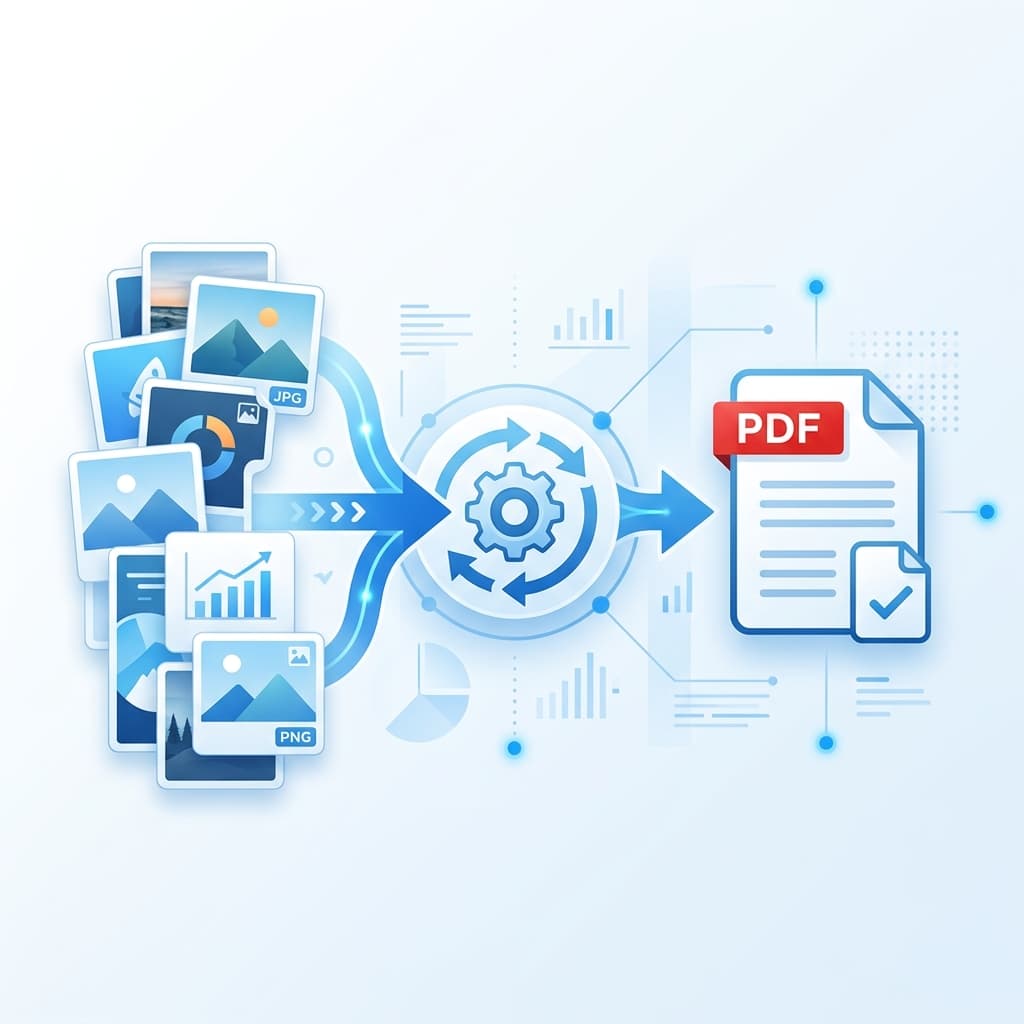
Need to convert 50, 100, or even 500 images to PDF at once? Batch conversion saves hours of manual work. This guide shows you the fastest ways to convert multiple images to PDF simultaneously — for free, without any software installation.
What is Batch Image to PDF Conversion?
Batch conversion means converting multiple image files to PDF in a single operation instead of one by one. Instead of uploading and converting each image separately, you select all your images at once and get one or multiple PDFs in seconds.
- Time saving: Convert 100 images in the same time it takes to convert 1
- Consistent output: All PDFs use the same settings (page size, margins, orientation)
- Merge or separate: Combine all images into one PDF, or create individual PDFs per image
- Any format: Mix JPG, PNG, WEBP, and GIF files in the same batch
Method 1: Free Online Batch Converter (Recommended)
The fastest method — no software, no signup, works on any device.
Step 1: Upload All Your Images at Once
Go to imagetopdf.space and click "Select Images". In the file picker, press Ctrl+A (Windows) or Cmd+A (Mac) to select all images in a folder, or hold Ctrl/Cmd and click to select specific files.
Pro Tip: You can also drag and drop an entire folder of images directly onto the upload area. Supports JPG, PNG, WEBP, GIF, and HEIC formats.
Step 2: Arrange and Configure
After uploading, drag images to reorder them. Choose your settings:
- Merge all into one PDF — perfect for photo albums, reports, portfolios
- Individual PDFs — one PDF per image, downloaded as a ZIP
- Page size: A4, Letter, Legal, A3, A5
- Orientation: Portrait or Landscape
- Margins: None, Small, or Large
Step 3: Convert and Download
Click "Convert to PDF". All processing happens in your browser — no upload to any server. Your PDF(s) download instantly. For large batches, the conversion still takes only a few seconds.
Method 2: Using Windows (Microsoft Print to PDF)
- Select all your images in File Explorer (Ctrl+A)
- Right-click → Print
- Select "Microsoft Print to PDF" as the printer
- Choose layout and click Print
- Name your file and save
Limitation: Windows creates one page per image but the layout options are very limited compared to online tools.
Method 3: Using Mac Preview
- Select all images in Finder (Cmd+A)
- Right-click → Open With → Preview
- In Preview, go to File → Print
- Click PDF → Save as PDF
Limitation: Preview doesn't let you control page size or margins easily, and the order depends on filename sorting.
Best Practices for Batch Conversion
Name Files in Order
Name your images 001.jpg, 002.jpg, 003.jpg so they sort correctly when uploaded. This ensures the PDF pages are in the right order.
Use Consistent Image Sizes
For the cleanest PDF, use images with the same aspect ratio. Mixed portrait and landscape images can look inconsistent in a single PDF.
Choose the Right Page Size
A4 is standard for documents. Use "No margin" setting to make images fill the entire page for photo albums.
Preview Before Downloading
Use the "Preview PDF" button to check the result before downloading, especially for large batches.
Common Questions
How many images can I convert at once?
Our online converter at imagetopdf.space handles large batches with no strict limit. Practically, you can convert hundreds of images in one go depending on your device's memory.
Can I mix different image formats in one batch?
Yes! You can mix JPG, PNG, WEBP, GIF, and HEIC files in the same batch. The converter handles all formats automatically.
Will batch conversion reduce image quality?
No. Our converter preserves the original resolution of every image. The PDF output maintains full quality regardless of batch size.
Is batch conversion free?
Yes, completely free with no limits, no watermarks, and no signup required.
Conclusion
Batch converting images to PDF is the most efficient way to handle large collections of photos or documents. Using a free online tool like imagetopdf.space gives you the most control — merge or separate, choose page sizes, reorder images — all in seconds, completely free.
Batch Convert Your Images to PDF Now
Select hundreds of images at once — free, instant, no signup!
Start Batch Converting Free