How to Convert iPhone Photos to PDF in 2026
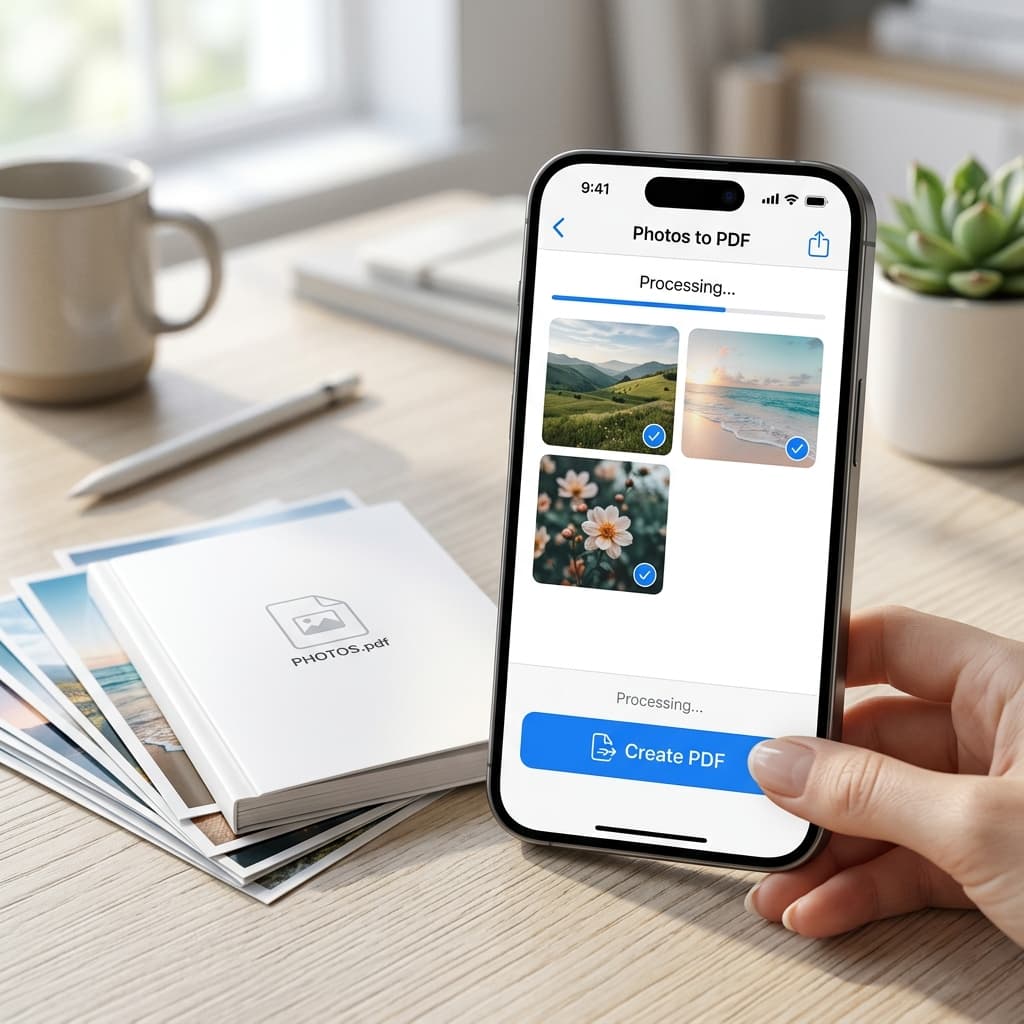
Whether you want to share a document, create a photo album, or send multiple pictures in one file, converting iPhone photos to PDF is incredibly useful. This guide covers every method — from using Safari on your iPhone to using a free online converter — so you can do it in seconds without installing any app.
Why Convert iPhone Photos to PDF?
- Universal sharing: PDFs open on every device — Android, Windows, Mac — without compatibility issues
- Combine multiple photos: Merge a whole photo shoot into one clean document
- Professional documents: Submit receipts, forms, or portfolios as a single PDF
- Smaller file size: One PDF is easier to email than 20 separate HEIC files
- HEIC compatibility: Convert Apple's HEIC format to a universally readable PDF
Method 1: Use a Free Online Converter (Fastest)
The easiest way — works directly in Safari on your iPhone, no app needed.
Step 1: Open the Converter in Safari
Open Safari and go to imagetopdf.space. Tap the upload area or the "Select Images" button. Your iPhone's photo library will open — select one or multiple photos.
Pro Tip: You can select multiple photos at once by tapping each one. The converter handles HEIC, JPG, PNG, and WEBP formats automatically.
Step 2: Arrange Your Photos
After uploading, drag and drop to reorder your photos. You can also crop, rotate, or remove any photo before converting. Set your preferred page size (A4, Letter) and orientation.
Step 3: Convert and Save to iPhone
Tap "Convert to PDF". The PDF downloads instantly to your iPhone's Files app. From there you can share it via AirDrop, email, WhatsApp, or save it to iCloud Drive.
Method 2: Using iPhone's Built-in Print Feature
No internet needed — works completely offline using iOS's native PDF export.
- Open the Photos app and select the photo(s) you want to convert
- Tap the Share button (box with arrow pointing up)
- Scroll down and tap "Print"
- On the Print Options screen, pinch outward on the preview thumbnail — this converts it to PDF
- Tap the Share button again and choose "Save to Files"
Limitation: This method is tricky for multiple photos and doesn't let you combine them into one PDF easily.
Method 3: Using the Files App (iOS 15+)
- Save your photos to the Files app first (Share → Save to Files)
- Open the Files app and long-press on an image
- Tap "Quick Actions" → "Create PDF"
- A PDF is created in the same folder instantly
Limitation: Only converts one image at a time. For multiple photos, use Method 1.
Tips for Best Results
Use HEIC or JPG — Both Work
iPhones save photos as HEIC by default. Our online converter handles HEIC natively, so no manual conversion needed.
Select Multiple Photos at Once
In the photo picker, tap "Select" to choose multiple photos at once and combine them into one PDF in the right order.
Your Photos Stay Private
Our converter processes everything in your browser — your photos never get uploaded to any server.
Save to iCloud for Easy Access
After downloading, save the PDF to iCloud Drive so it's accessible from your Mac, iPad, and other Apple devices.
Common Questions
Can I convert HEIC photos to PDF on iPhone?
Yes! Our online converter at imagetopdf.space supports HEIC format natively. Just upload your iPhone photos and convert — no format conversion needed first.
How many photos can I convert at once?
You can convert dozens of photos at once and merge them into a single PDF. There's no strict limit — just select all the photos you need.
Will the PDF quality be good?
Yes. The converter preserves the original resolution of your iPhone photos. iPhone cameras produce high-quality images, and the PDF will reflect that quality.
Does it work on iPad too?
Absolutely. The same methods work on iPad. The online converter is fully responsive and works great on all iOS and iPadOS devices.
Conclusion
Converting iPhone photos to PDF is quick and easy. For the best experience — especially when combining multiple photos — use our free online converter at imagetopdf.space. It works directly in Safari, requires no app installation, and keeps your photos completely private.
Convert Your iPhone Photos to PDF Now
Free, instant, no app required — works in Safari!
Convert Photos to PDF Free