How to Convert Images to PDF on Android in 2026
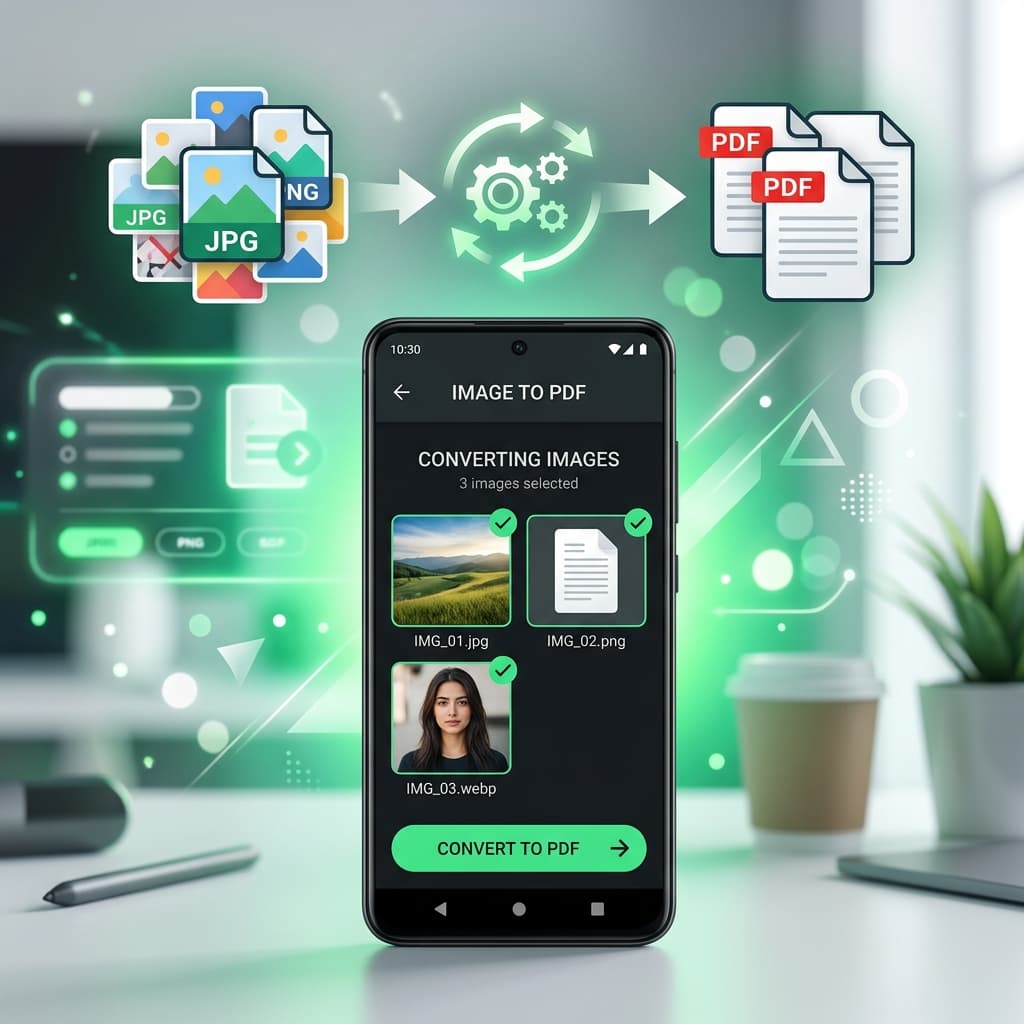
Need to convert photos to PDF on your Android phone? Whether you're using a Samsung Galaxy, Google Pixel, or any other Android device, there are several free methods that work without downloading any extra app. This guide covers the fastest and easiest options.
Method 1: Free Online Converter in Chrome (No App Needed)
The easiest method — works on any Android phone using Chrome browser.
Step 1: Open the Converter
Open Chrome on your Android phone and go to imagetopdf.space. Tap "Select Images". You can choose photos from your Gallery, Google Photos, or Files app.
Pro Tip: In the photo picker, tap and hold the first photo, then tap others to select multiple photos at once for batch conversion.
Step 2: Arrange and Set Options
Drag photos to reorder them. Choose your page size (A4 is standard), orientation, and margins. Enable "Merge all images in one PDF" to combine everything into a single document.
Step 3: Download the PDF
Tap "Convert to PDF". The PDF downloads to your Android's Downloads folder. Find it in your Files app or notification bar. Share it via WhatsApp, Gmail, or any other app instantly.
Method 2: Using Google Drive (Built-in Android Feature)
Google Drive has a hidden scan-to-PDF feature that also works for photos:
- Open the Google Drive app
- Tap the + (Add) button
- Select "Scan"
- Point your camera at a document or tap the gallery icon to select a photo
- Tap the checkmark → Drive saves it as a PDF automatically
Limitation: Best for document scans. For photo albums or multiple images, the online converter gives better results.
Method 3: Using Chrome's Print to PDF
- Open your photo in Chrome (tap and hold → Open in new tab, or share to Chrome)
- Tap the three-dot menu → Share → Print
- In the printer dropdown, select "Save as PDF"
- Tap the PDF icon to download
Limitation: One image at a time only. For multiple photos, use Method 1.
Method 4: Samsung-Specific (Galaxy Phones)
Samsung Galaxy phones have a built-in PDF creation feature:
- Open the Gallery app
- Select your photos (tap and hold to select multiple)
- Tap the three-dot menu → Print
- Select "Save as PDF" from the printer list
- Tap the download button
Tips for Best Results on Android
Allow File Downloads in Chrome
If Chrome asks for permission to download files, tap "Allow". This is needed to save the PDF to your Downloads folder.
Find Your PDF in Files App
After downloading, open your Files app → Downloads folder to find the PDF. On Samsung, use "My Files" app.
Share Directly from Browser
After conversion, you can share the PDF directly from the browser download notification without opening the Files app.
Your Photos Stay Private
Our converter processes images entirely in your browser. Your photos are never uploaded to any server — complete privacy guaranteed.
Common Questions
Can I convert photos to PDF on Android without an app?
Yes! imagetopdf.space works entirely in Chrome — no app download needed. Just open the website and convert directly.
How do I combine multiple photos into one PDF on Android?
Use our online converter — select multiple photos, enable "Merge all images in one PDF", and tap Convert. All photos become pages in a single PDF.
Where does the PDF save on Android?
Downloaded PDFs go to your Downloads folder. Access them via the Files app, My Files (Samsung), or the notification bar after download.
Does it work on older Android versions?
Yes. Our converter works on Android 6.0 and above with Chrome browser. No special Android version required.
Conclusion
Converting images to PDF on Android is simple and free. For the best experience — especially combining multiple photos — use imagetopdf.space in Chrome. It's fast, private, and works on every Android device without any app installation.
Convert Your Android Photos to PDF Now
Works in Chrome — no app download, completely free!
Convert Images to PDF Free