How to Convert PNG to PDF on Mac in 2026
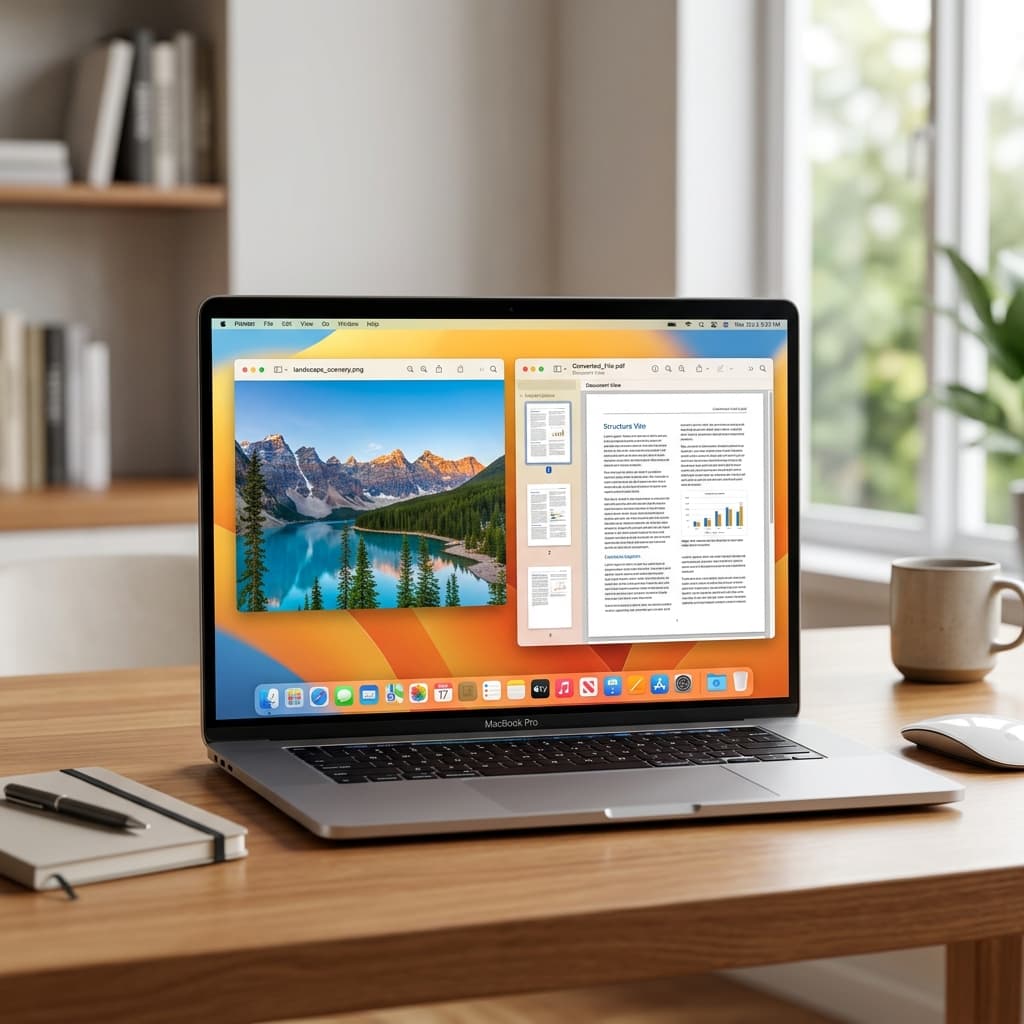
Mac makes it surprisingly easy to convert PNG images to PDF — and you don't need to buy any software. Whether you want to use the built-in Preview app, a quick drag-and-drop method, or a free online converter for batch conversions, this guide covers all the best options for macOS users.
Method 1: Using Mac Preview (Built-in, Free)
Preview is macOS's built-in image viewer and it has powerful PDF export capabilities.
Convert a Single PNG to PDF
- Double-click your PNG file to open it in Preview
- Go to File → Export as PDF
- Choose a name and location, then click Save
That's it — your PNG is now a PDF!
Convert Multiple PNGs into One PDF
- Select all your PNG files in Finder (Cmd+A or Cmd+click)
- Right-click → Open With → Preview
- All images open in Preview's sidebar
- Go to File → Print (Cmd+P)
- Click the PDF dropdown at the bottom left → Save as PDF
- Name your file and click Save
Pro Tip: In Preview's sidebar, drag images to reorder them before printing to PDF. This controls the page order in the final PDF.
Method 2: Free Online Converter (Best for Batch + More Control)
For more control over page size, margins, and orientation — or to convert many PNGs at once — use a free online converter.
Step 1: Upload Your PNG Files
Open imagetopdf.space in Safari or Chrome on your Mac. Drag and drop your PNG files directly onto the upload area, or click "Select Images" to browse. You can select multiple PNGs at once with Cmd+A.
Step 2: Customize Your PDF
Choose your settings — page size (A4, Letter, A3), orientation (portrait/landscape), and margins. You can also reorder images by dragging them in the gallery.
PNG Tip: PNG files support transparency. Our converter handles transparent PNGs correctly, placing them on a white background in the PDF.
Step 3: Download Your PDF
Click "Convert to PDF". The PDF downloads to your Mac's Downloads folder instantly. All processing happens in your browser — your PNG files never leave your Mac.
Method 3: Drag PNG onto Safari (Quick Trick)
Here's a little-known Mac trick:
- Open a new tab in Safari
- Drag your PNG file from Finder directly into the Safari tab
- The PNG opens in Safari
- Press Cmd+P → click PDF → Save as PDF
Limitation: Only works for one image at a time and doesn't give you page size control.
Method 4: Using Automator (For Power Users)
Mac's built-in Automator app can create a workflow to batch convert PNGs to PDF with a right-click:
- Open Automator (search in Spotlight)
- Create a new Quick Action
- Set "Workflow receives" to image files in Finder
- Add action: New PDF from Images
- Save the workflow with a name like "Convert to PDF"
- Now right-click any PNG in Finder → Quick Actions → Convert to PDF
PNG vs PDF: Key Differences
Transparency Handling
PNG supports transparent backgrounds. When converting to PDF, transparent areas become white. This is standard behavior across all converters.
File Size
PNG files are lossless and can be large. PDF conversion may slightly reduce file size while maintaining visual quality.
Multi-page Support
Unlike PNG (single image), PDF supports multiple pages — perfect for combining many PNG screenshots or designs.
Universal Compatibility
PDF opens on every device without needing special software, while PNG requires an image viewer.
Common Questions
Does converting PNG to PDF lose quality on Mac?
No. Both Preview and our online converter preserve the full resolution of your PNG. The PDF will look identical to the original PNG.
Can I convert PNG to PDF on Mac for free?
Yes — completely free. Preview is built into every Mac, and imagetopdf.space is free with no signup required.
What's the best method for multiple PNGs?
For the most control (page size, order, margins), use our online converter. For a quick offline solution, use Preview's Print → Save as PDF method.
Conclusion
Converting PNG to PDF on Mac is easy and free. For a single image, Preview's "Export as PDF" is the quickest option. For multiple images or more control over the output, use imagetopdf.space — it's free, fast, and works entirely in your browser.
Convert PNG to PDF on Mac Now
Free online converter — drag, drop, and download in seconds!
Convert PNG to PDF Free